What problem it solves
In a company with a hundred computers across two locations, the IT team cannot see at a glance which workstations are turned off, which have not received security updates, where the antivirus has outdated signatures, or which have been waiting days for a restart. Every check means a trip to the office or a remote session opened by hand. Problems surface late, usually after an incident.
RMM places a small agent on every workstation and server, Windows or Linux, which continuously reports its status. On Windows, the agent is digitally signed. The IT team sees the entire fleet from one place and can act remotely, without going to the office.
What it does in practice
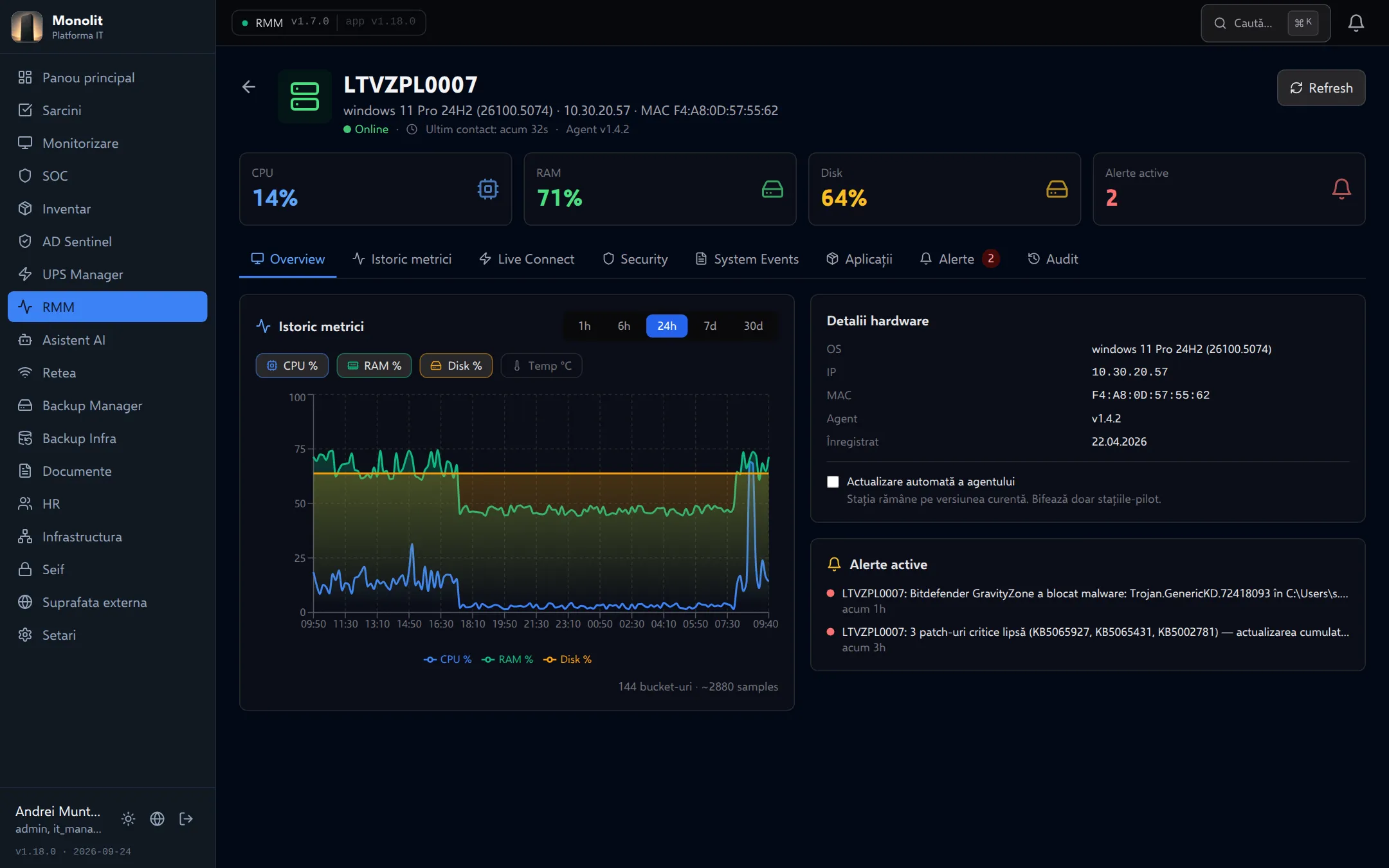
- Shows, for each device, its online/offline status, CPU, RAM, disk, temperature, and history over 1 hour, 6 hours, 24 hours, 7 days, or 30 days, plus how much the agent itself consumes.
- Collects the hardware inventory and the list of installed programs, plus the Windows event logs and journald on Linux. SOC searches the installed programs reported by RMM for unapproved remote access tools (TeamViewer, AnyDesk), which become evidence in its detections.
- Explains logs using the local AI: it summarizes a workstation’s recent problems, with severity, evidence, and next steps. For a recurring error, it shows the error’s history, other workstations with the same error, the probable causes, and the fix, with the risk of each step. Account names and addresses are replaced before they reach the model, and the data does not leave the company. When a workstation or server has repeated critical errors or a service that is down, Monolit gathers the logs automatically (including the security log and approved log files) and attaches the explanation to the alert. Problems that appear on several computers are shown together, on the “Common issues” page.
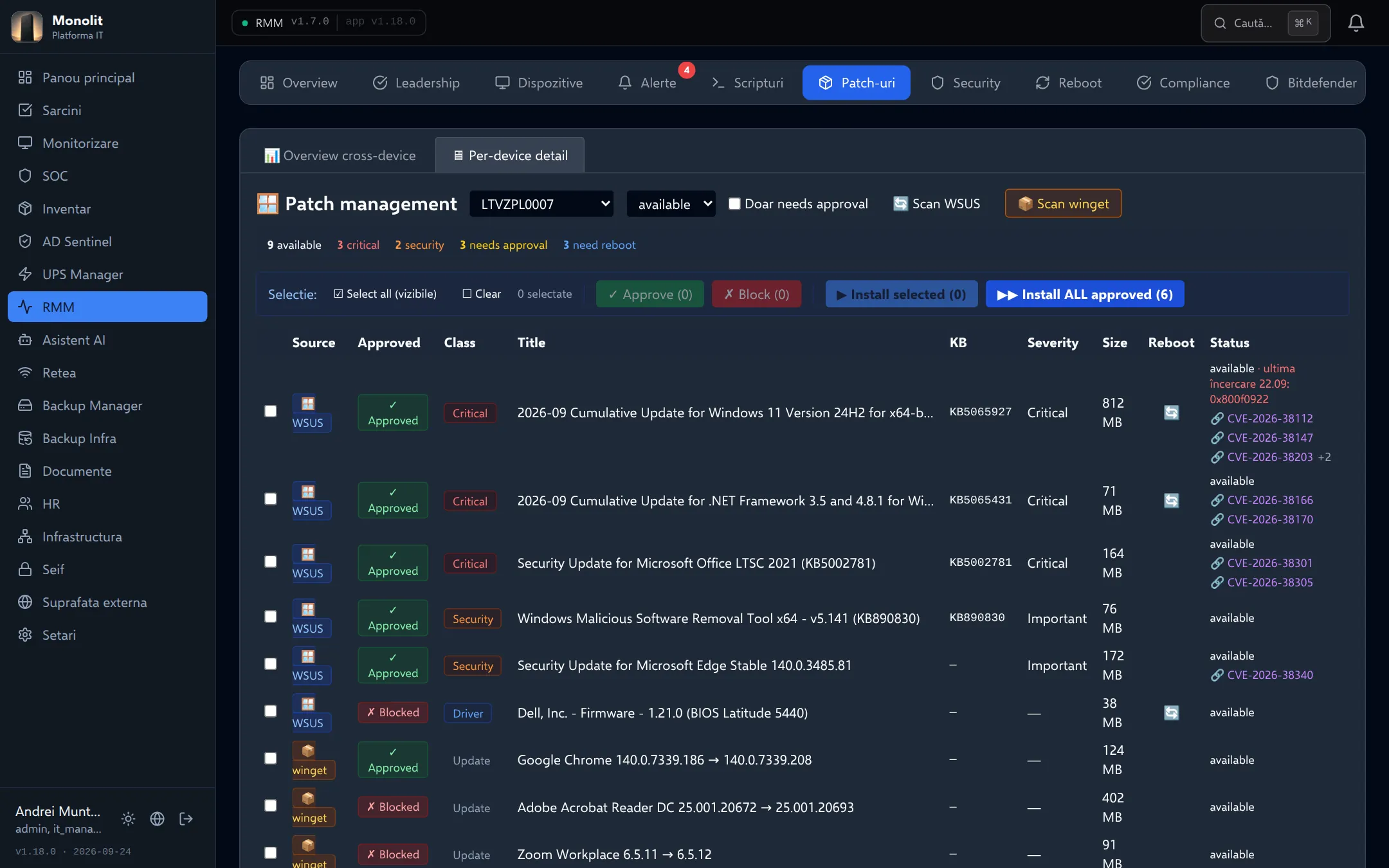
- Manages Windows updates (Windows Update): scanning, approval, and installation immediately or scheduled in a maintenance window. Application updates (winget) can be scanned and appear in the same list, but installing them from RMM is not yet available.
- Tracks the antivirus on each Windows workstation: the product, real-time protection, and whether signatures are up to date, with their age where the product exposes it. For Microsoft Defender it also shows recently caught threats and their history. For Bitdefender GravityZone, recent incidents come directly from its console, and detections also reach SOC. If a workstation has several antivirus products, each one appears.
- Keeps track of workstations waiting for a restart, by age, and notifies the IT team. Automatic restart of workstations that have been waiting too long is off by default and must be turned on explicitly; until then, the IT team receives an alert and restarts them manually. Once turned on, automatic restart happens only in a fixed morning window, which can overlap the start of the workday, especially in summer, and the user receives a warning a few minutes beforehand. Stale or false restart flags do not trigger anything.
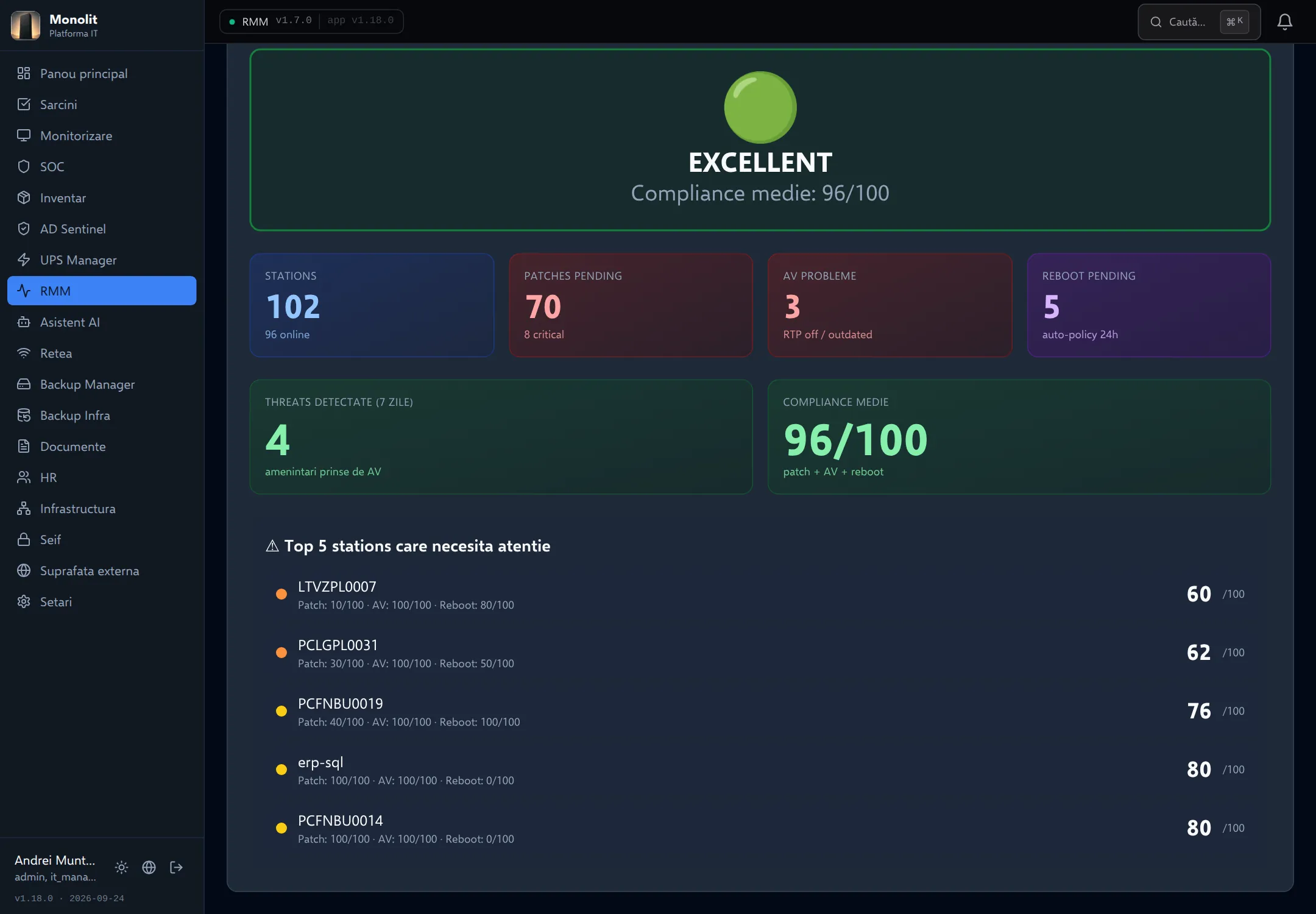
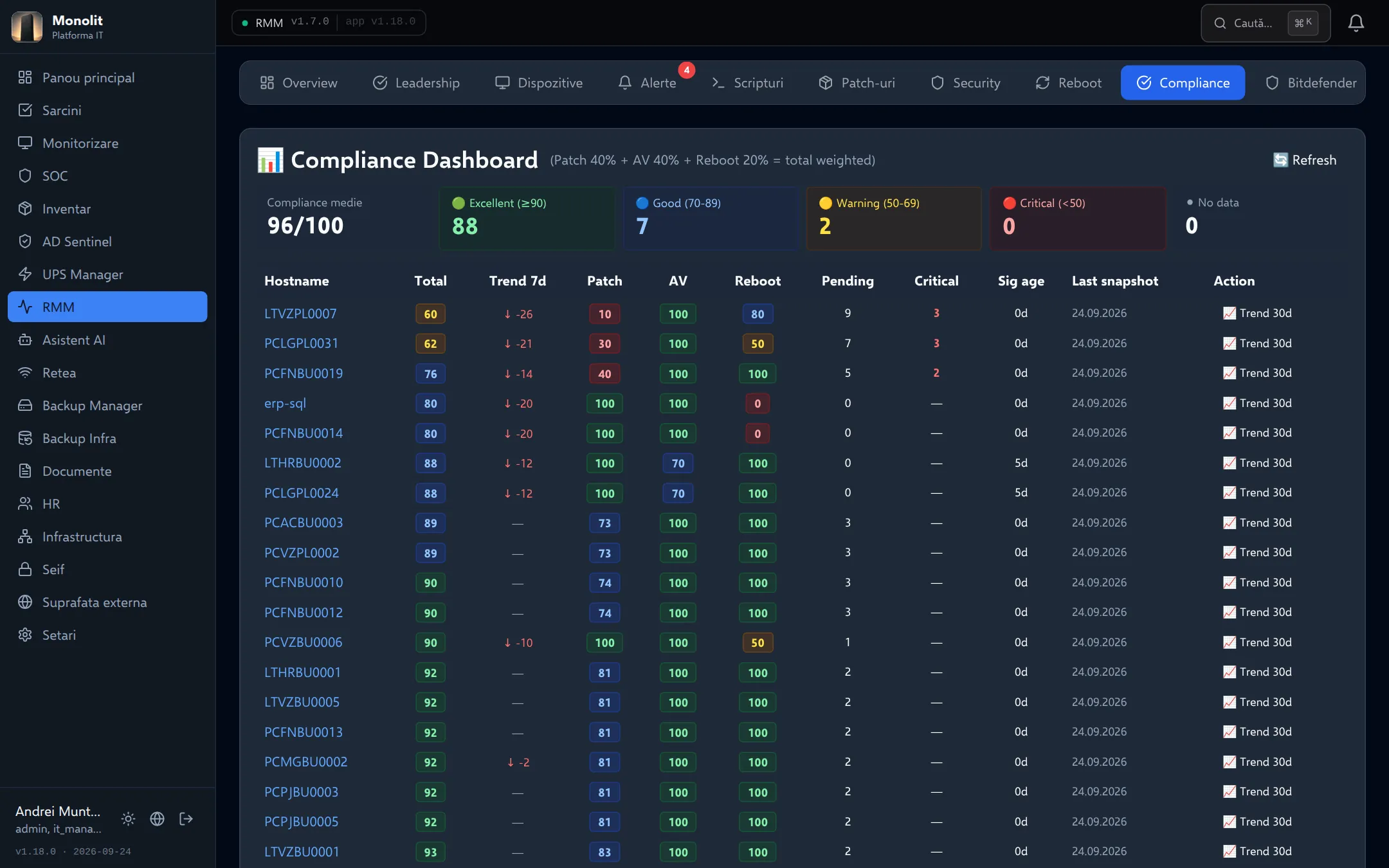
- Calculates a daily compliance score per device, from updates, antivirus, and overdue restarts, with each device’s trend over time, plus the company-wide average.
- Generates alerts when thresholds are exceeded and runs automation rules: an alert, a script, or a Teams notification. For thresholds, antivirus status, pending restarts, and agent updates, each problem produces a single alert, which closes on its own when the problem goes away; threats caught by the antivirus stay open until a person closes them.
- Enables remote actions: PowerShell, CMD, or Bash scripts on one or more devices; terminal, services, event log, and files (Live Connect); remote control through RustDesk; and Wake-on-LAN. Each command has a status tracked on the device page and cannot be repeated by mistake.
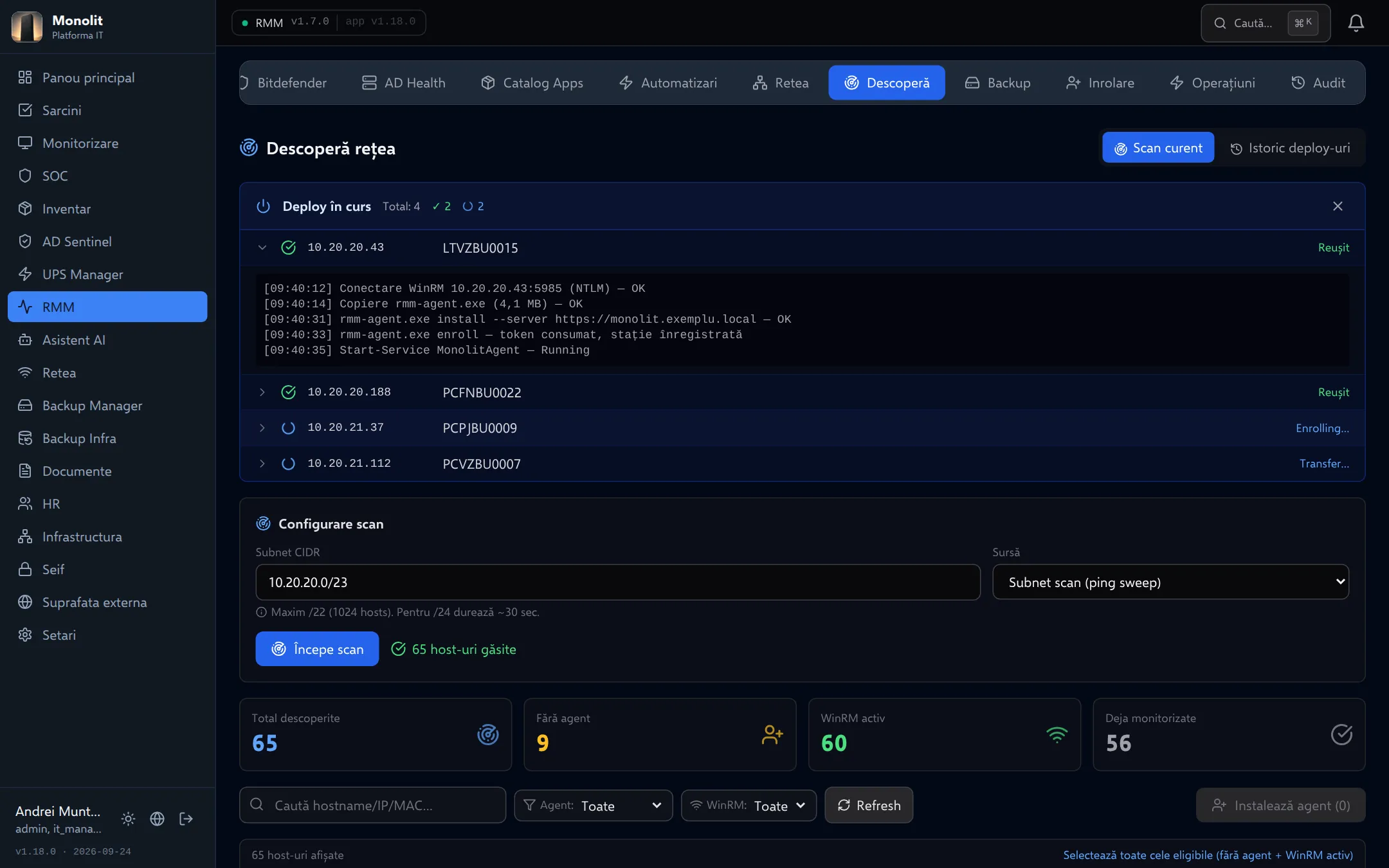
- Discovers the computers on the network and installs the agent on several workstations at once, via WinRM. A computer that is already registered cannot be taken over with a standard enrollment code: reinstallation is done from the device page, with a code valid only for that device and only once.
- Monitors the TLS certificates of internal and public websites and generates PDF reports (executive and ISO 27001). Antivirus, patch, and certificate data automatically feed the compliance checks in the Documents module.
- Sends workstation threats and alerts to SOC, plus the security events from domain controllers (account lockouts, failed sign-ins, changes to privileged groups, and signs of attacks on accounts), read by the agent, without commands run remotely on the controllers. Routine successful sign-ins are not collected.
- Installs the agent-based backup component, only on the workstations chosen in Backup Manager (see the Infrastructure Backup page): a separate service (signed, on Windows) that backs up the workstation’s files to a repository the workstation cannot delete.
- Only the IT team has access to RMM, and actions on workstations (scripts, commands, installing and scheduling patches, restarts, enrollments) go into the audit log: who, what, on which device, when. Approving or blocking a patch is recorded on the patch, with the author and the time.
Workflows
The technician sees workstations, alerts, and patches and closes resolved alerts. Scripts, Live Connect, patch installation, and Discover are reserved for the administrator and the IT manager.
1. Security updates across the whole fleet
- The IT manager opens Patches → the overview of all workstations and filters the workstations with critical updates.
- They start a scan on the selected workstations; the results appear within a few minutes.
- Critical and security updates are approved automatically. Drivers and other optional updates wait for IT approval, one by one or in bulk.
- Installation starts immediately or is scheduled in the evening maintenance window.
- Each device’s compliance score rises after installation and restart.
2. An incident on a workstation
- Microsoft Defender blocks a file; RMM creates a critical alert, and the threat also reaches SOC.
- The technician opens the device page: they see the alert, the activity spike on the chart, the threat in the Security tab, and the events in the Windows log.
- The IT manager asks the local AI for a summary of the logs and checks processes and connections remotely, via a script or Live Connect, without interrupting the user’s work.
- The IT manager installs the missing updates, and the technician closes the alert; every step stays in the audit log.
3. A new computer in the company
- The workstation connects to the network. The IT manager runs a subnet scan from the Discover tab.
- The list shows which hosts have no agent and whether WinRM is enabled.
- They select the eligible workstations, test the credentials on the first one, and start the bulk installation.
- Progress is visible on each workstation, with a step-by-step log. Within a few minutes the workstation appears in the device list.
- For workstations without WinRM, RMM generates a ZIP package (the agent plus the installation script, with the enrollment code included) or a command to run locally.
Benefits and metrics
- The number of devices online out of the total, always visible on the main dashboard.
- The average compliance score and the list of devices below the threshold, ready for a leadership meeting.
- The number of missing critical updates and how many workstations lack them.
- Workstations with antivirus problems and the threats caught in the last 7 days.
- Overdue restarts, by age.
- The time from connecting a new workstation to having it monitored: minutes, not a visit to the office.
- A short alert list: threshold, antivirus status, restart, and agent update alerts appear once per problem, trigger a single notification, and close on their own when the problem goes away.
- On Windows, an agent signed with the company’s certificate, which accepts only updates also signed by the company and is built to give antivirus products as few reasons as possible to consider it suspicious.
- A complete audit trail for actions on workstations, as required by ISO 27001.