What problem it solves
A backup that fails silently is usually discovered only when a restore is needed. New virtual machines are often left out of backup jobs. Physical servers and files are often backed up by another product, with another console, and backup storage fills up without anyone tracking the rate. The 3-2-1 rule (three copies, two media, one off-site) is checked rarely, by hand.
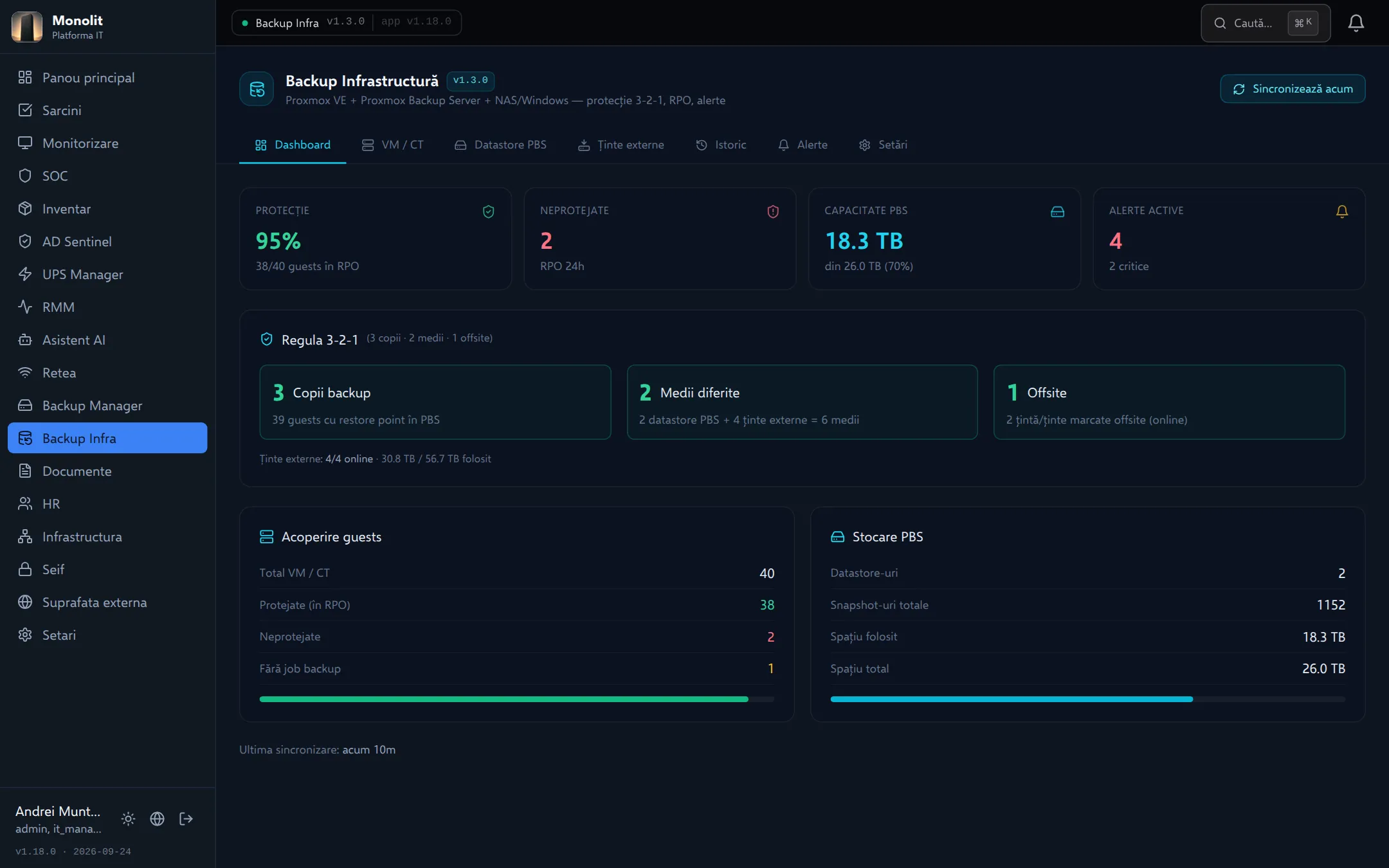
Infrastructure Backup reads the actual state of backups in Proxmox, in Veeam, and on the storage targets at short intervals. It shows on a single screen what is protected, what is not, and since when, and automatically checks whether jobs are configured correctly. For workstations and physical computers without another backup, the agent-based backup component also makes the actual copy, to a repository the workstation cannot delete.
What it does in practice
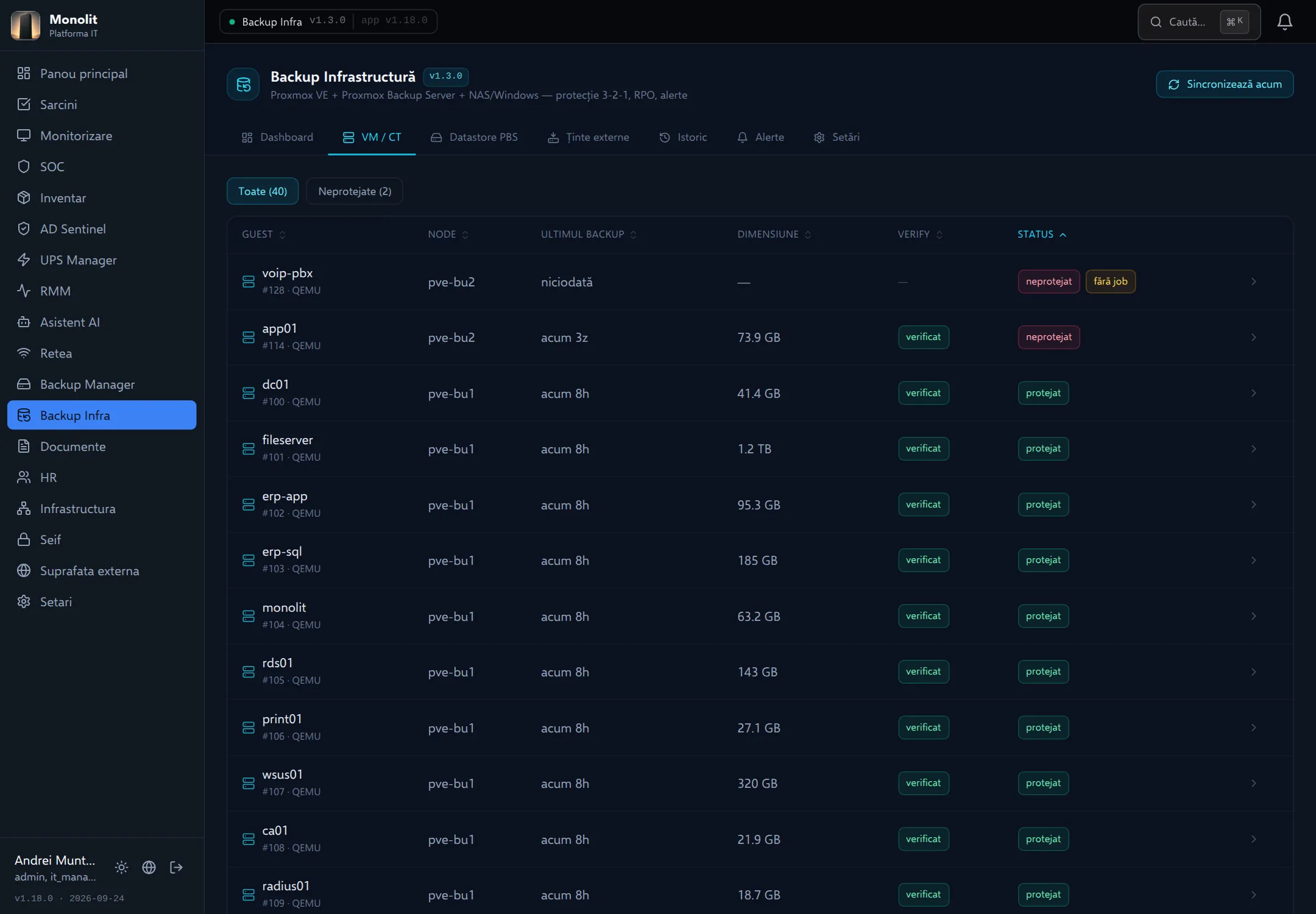
- For each virtual machine and container in Proxmox, it shows the date of the last backup, the size, the verification, and whether it is included in a job. It marks as unprotected any VM whose last copy is older than the RPO set by the company.
- Tracks Veeam Backup & Replication jobs, including on editions without an API: there, the Monolit agent on the Veeam server is enough, with no account and no password. A failed, stuck, unscheduled, or late job becomes an alert.
- Checks the configuration automatically: running VMs left without a job, jobs that skip VMs, retention settings that delete the monthly copies, cleanup and verification jobs that do not run, corrupted copies. Each problem comes with an explanation and what to do.
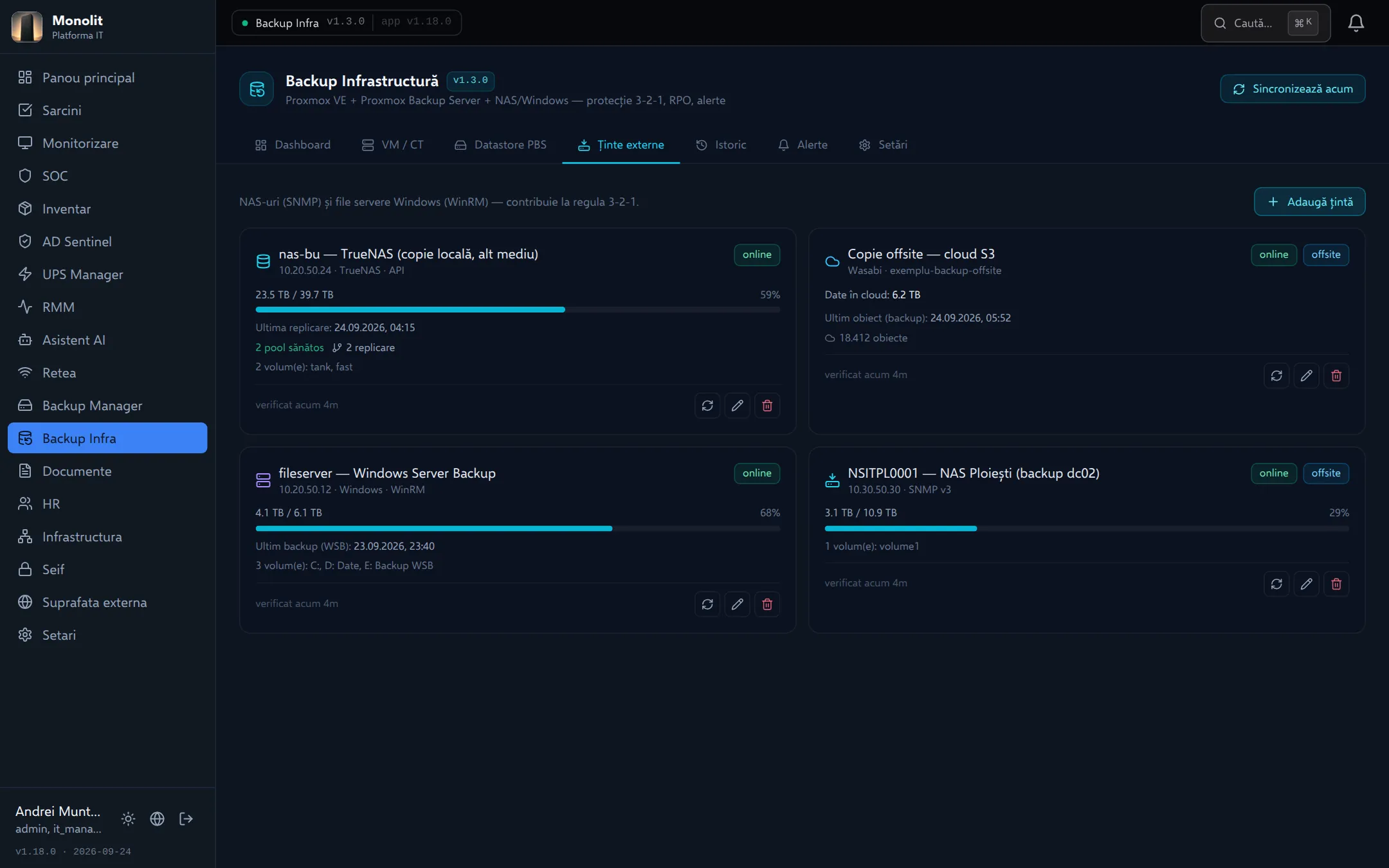
- Calculates the protection percentage and checks the 3-2-1 rule on the Proxmox Backup Server datastores and on external targets: TrueNAS NAS devices, other NAS devices, Windows file servers, and S3-compatible cloud storage. The 3-2-1 matrix turns green only with all three copies.
- For each storage space, shows usage, daily growth, and in how many days it will fill up, with history; for PBS datastores, also deduplication and the number of snapshots. It warns in advance, when space approaches the limit or when the growth rate shows it will fill up soon, and raises a critical alert before it fills up (for Veeam repositories, only the warning).
- Also tracks disk health, not just usage: SMART and the result of the last scrub on TrueNAS, ZFS errors, replication, and active Object Lock on S3.
- A new storage space (NAS, PBS, cloud, USB disk) is added from the interface, with a wizard for each type. Its password goes straight into the service vault, without being displayed again.
- Keeps the history of runs: backup, verification, and cleanup.
- Generates alerts for a failed backup, a VM without a copy within the RPO, a target that is unavailable or has no recent copy, configuration problems, and storage that is filling up. Alerts are acknowledged from the interface; configuration, Veeam, and storage alerts close on their own when the problem goes away. Failed backups, Veeam jobs with problems, and unprotected VMs also reach SOC.
- The backup status of the VMs automatically becomes evidence in the NIS2 assessment in Documents → Compliance, and the backup, restore test, and RPO / RTO reports serve as NIS2 and ISO 27001 evidence.
The Backup Manager screen
From the application menu, Backup Manager answers the question “what is backed up, and by what”, with data from Infrastructure Backup. The Coverage tab shows each server, VM, and agent host, with the backup source (Proxmox, Veeam, or the Monolit agent), the last successful copy, and the status: protected, late, failed, no backup, or stopped. Problems appear first. The other tabs: Veeam jobs, Storage (“full in ~N days”, plus disk health), Alerts, and Hosts via agent. The whole IT team can see this screen; configuration stays in Infrastructure Backup.
Agent-based backup
Workstations and physical computers that are not backed up by Proxmox or Veeam get agent-based backup. From Backup Manager → “Hosts via agent”, the IT team chooses the workstations. The Monolit agent installs on them a separate, digitally signed component, which runs backups on its own schedule, even when the Monolit server is down. Backup and monitoring do not get in each other’s way: a problem in one does not stop the other.
- Versioned, encrypted files, in a repository on the NAS that the workstation itself cannot delete: ransomware on the workstation cannot destroy the copies as well.
- Sync and mirroring between folders, as in FreeFileSync: before a run, Monolit shows exactly what will be copied or deleted and keeps versions of deleted or overwritten files. On a ransomware signal, mirrors stop automatically, so that they do not copy encrypted files over the good copy.
- Applications and physical servers: SQL Server databases, the system state of physical domain controllers, and the full image of physical servers, which, after a hardware failure, can boot as a virtual machine in Proxmox. The IT team chooses the engine for server images.
- The off-site copy goes to a cloud in the European Union, and rotated USB disks provide a disconnected copy. Laptops catch up on missed backups when they return to the network.
- Restoring files, to the original location or to another path, is done by administrators and the IT manager, with an audit record. Deleting copies, reducing retention, and disabling a policy require approval from a second administrator. An employee can request a deleted file from the copies of their own computer; the restore happens after IT approval.
Verified restores
Once a month, Monolit automatically restores a virtual machine from backup in an isolated network, checks whether it boots and responds, and produces the report. During an outage, a virtual machine can start directly from backup within a few minutes, and files can be extracted from a VM image. Agent-based backup is also tested periodically: files and databases are test-restored and verified, without touching production.
Backup analysis
Monolit notices when a backup run shows signs of ransomware and raises an alert in SOC. Before a copy is restored to production, Monolit scans it with the antivirus. The catalog of backed-up files tells which copies contain a specific file.
Workflows
1. The morning check
- The IT manager opens Backup Manager → Coverage: systems with problems appear first, whether they are backed up by Proxmox, by Veeam, or by the Monolit agent.
- On the Infrastructure Backup dashboard, the “Backup configuration check” card shows the mistakes found at the last sync.
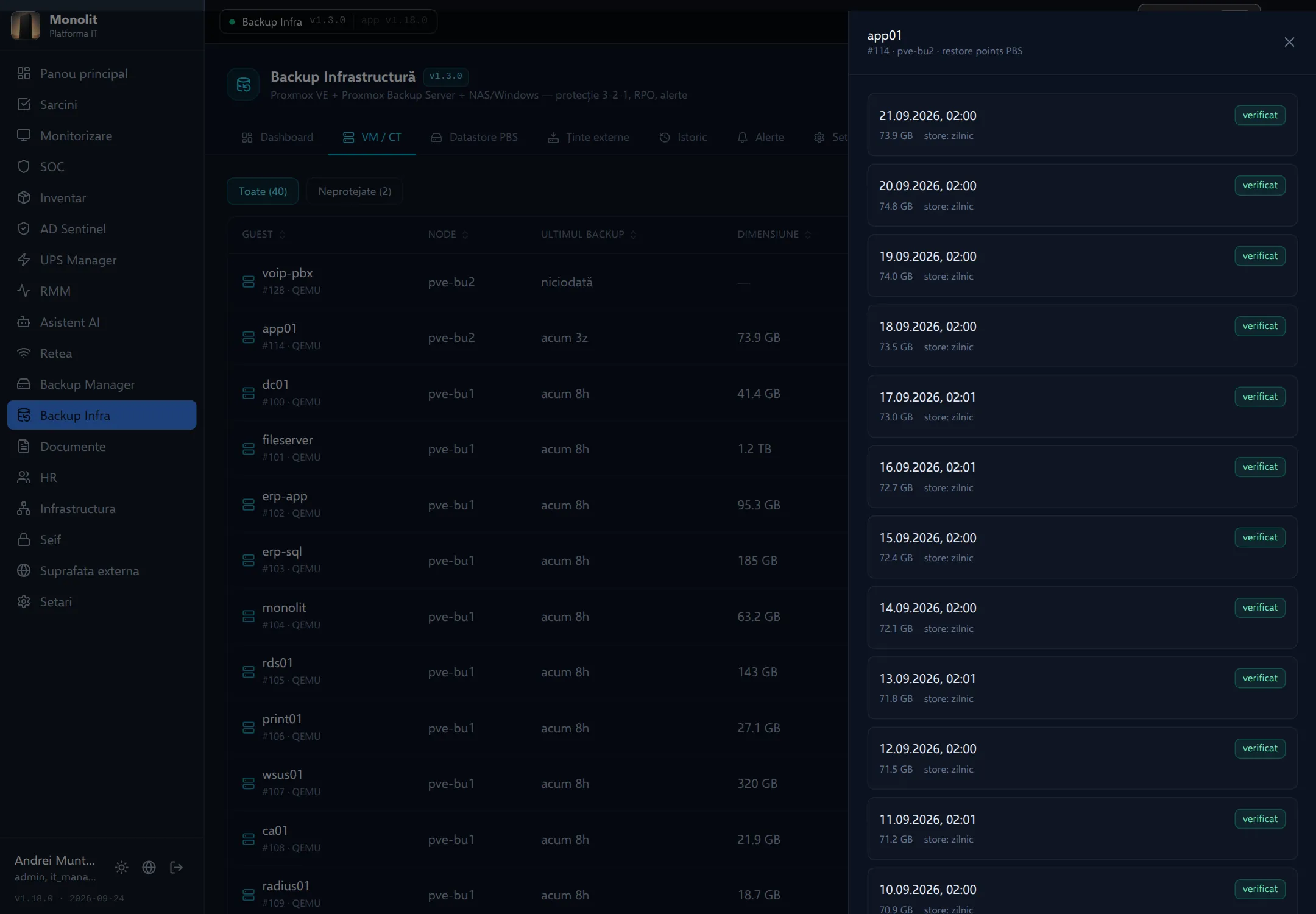
- For a VM with problems, they open the list of restore points and see the last valid copy.
2. A backup that fails repeatedly
- After the first failure, a failed-backup alert appears, with the error message from Proxmox or Veeam, also sent to SOC.
- If the failure lasts longer than the RPO, a second alert appears: the VM becomes “unprotected”, and the Veeam job “late”.
- The technician fixes the cause. The run history shows when the backup succeeded again.
3. A new VM left out of backup jobs
- At sync, the VM appears with the “no job” label, and the configuration check flags it.
- The VM stays marked “unprotected” until it gets a restore point. The configuration alert closes on its own after the VM is added to a job.
4. A backup repository fills up
- The Storage tab shows how much the repository grows per day and in how many days it will fill up.
- The alert comes early, based on the growth rate, so there is time for cleanup, shorter retention, or a new disk.
5. An employee deleted a file
- The employee picks the file from the copies of their own computer and requests a restore.
- The IT team approves the request; the file is restored to another path, so that nothing is overwritten, and the restore is recorded in the audit log.
6. The monthly restore test
- Monolit automatically starts a virtual machine from backup in an isolated network and checks whether it responds.
- The report goes into the compliance evidence: date, duration, and result.
Benefits and metrics
- The percentage of VMs/CTs and agent hosts protected within the RPO, on the module dashboard and on the main dashboard.
- The number of VMs without a backup job and the number of open configuration problems: the target is zero.
- The age of the last valid copy, for each VM, host, and Veeam job.
- The days left until each datastore and each target fills up, plus disk health.
- The state of the 3-2-1 rule: copies in PBS, number of media, off-site copies.
- The last successful restore test and the measured restore times.