IT operations

Inventory

Every piece of equipment has an asset tag, an owner, a location, a rack position, and a warranty, with network scanning and QR labels.

Version
1.1.0
Stage
Stable
Screenshots
4
Replaces
Excel spreadsheets and manual inventory counts
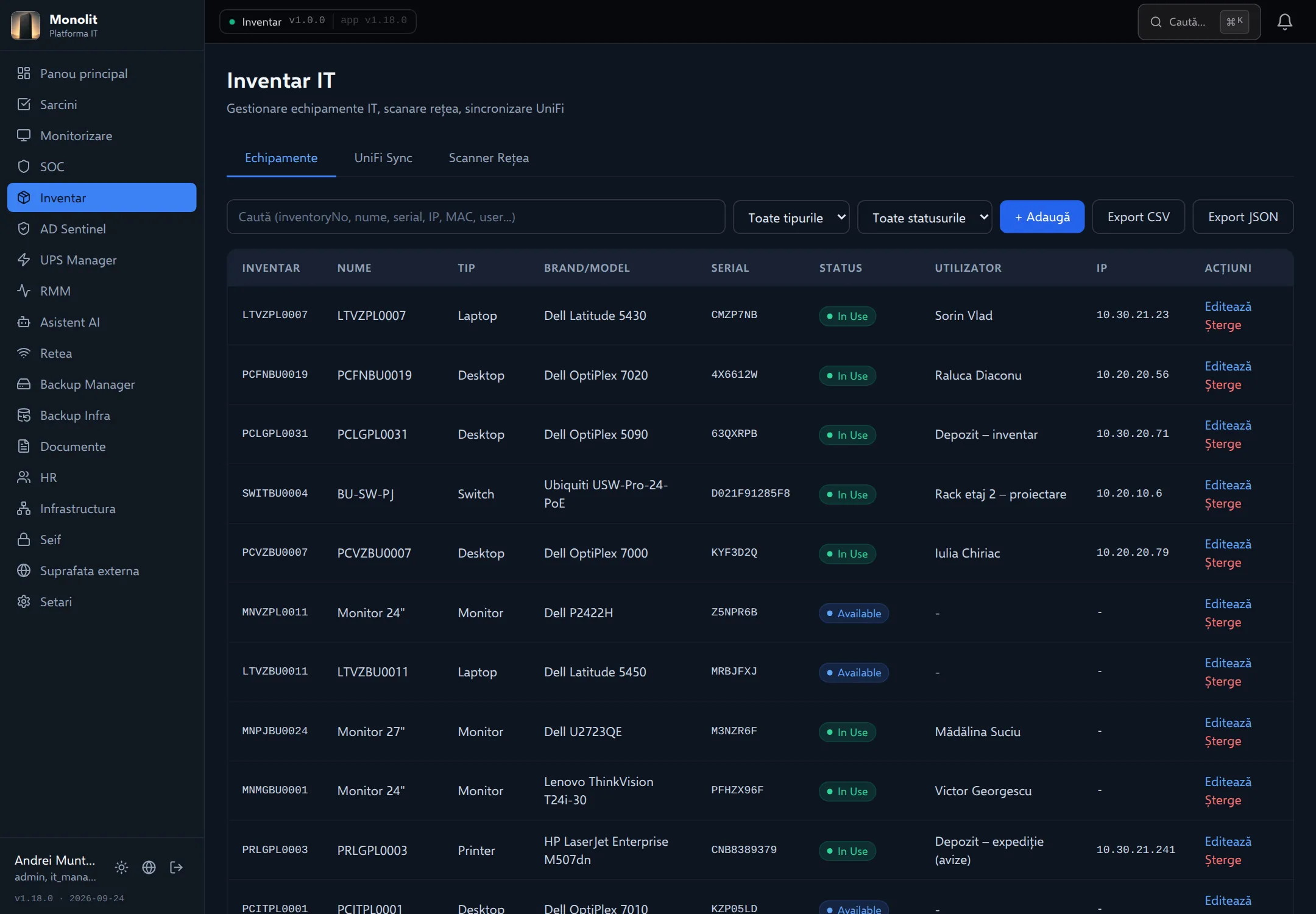
Asset list. The company’s 418 assets, each with a unique asset tag, model, serial number, status, user, and IP. Search and the type and status filters find any asset in seconds.

Screenshots from the application

What it looks like at work

The real Monolit interface, with data from a fictional company on a typical day. The interface in the screenshots is in Romanian. Click a screenshot to see it at full size.

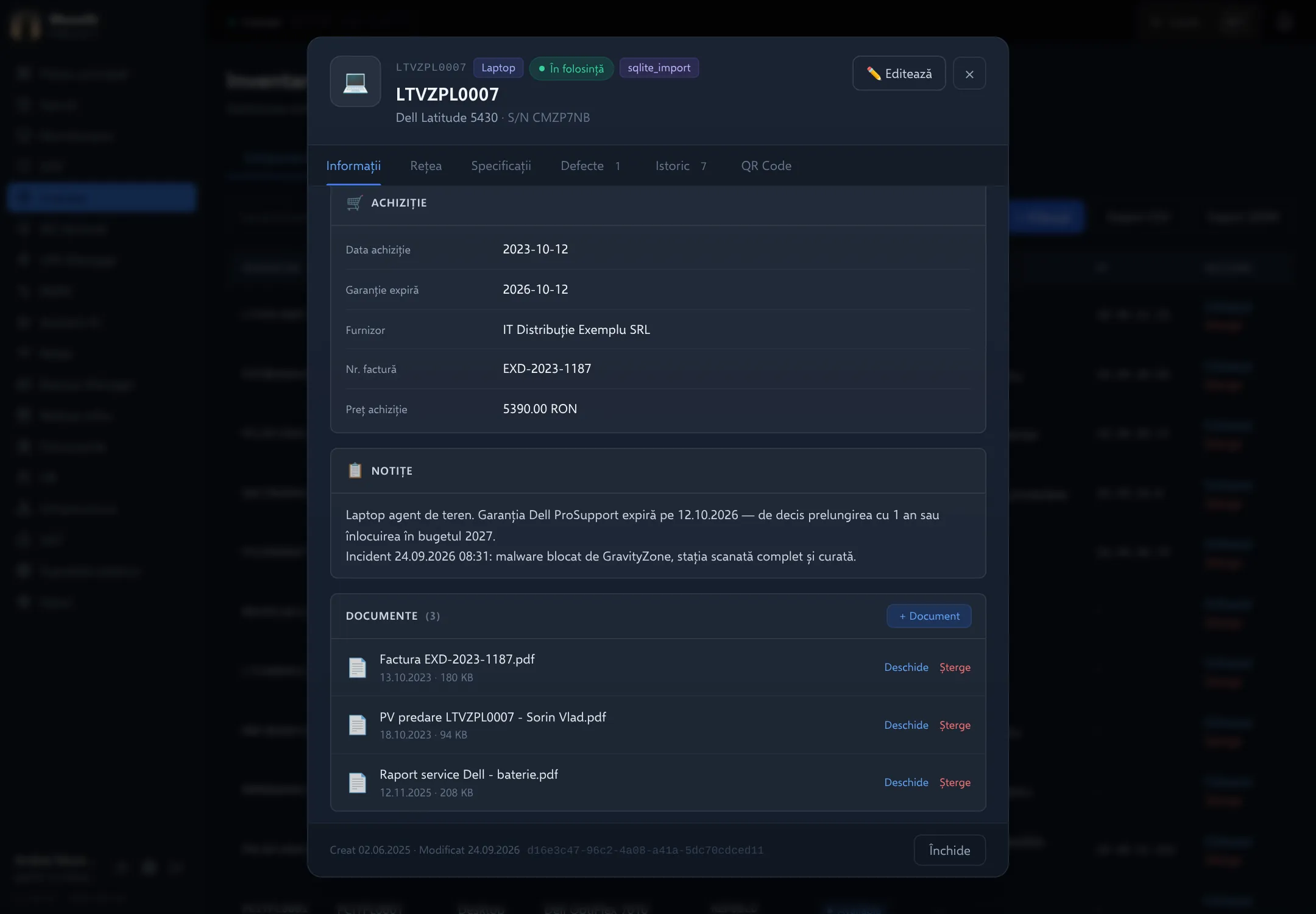
A laptop’s record. The record of LTVZPL0007, Sorin Vlad’s laptop: the purchase, the warranty that expires on October 12, 2026, the IT notes, and the attached documents (invoice, handover report, service report). The tabs at the top open the network, specifications, defects, history, and QR label.
Screenshot 2 of 4

A laptop’s record

The record of LTVZPL0007, Sorin Vlad’s laptop: the purchase, the warranty that expires on October 12, 2026, the IT notes, and the attached documents (invoice, handover report, service report). The tabs at the top open the network, specifications, defects, history, and QR label.

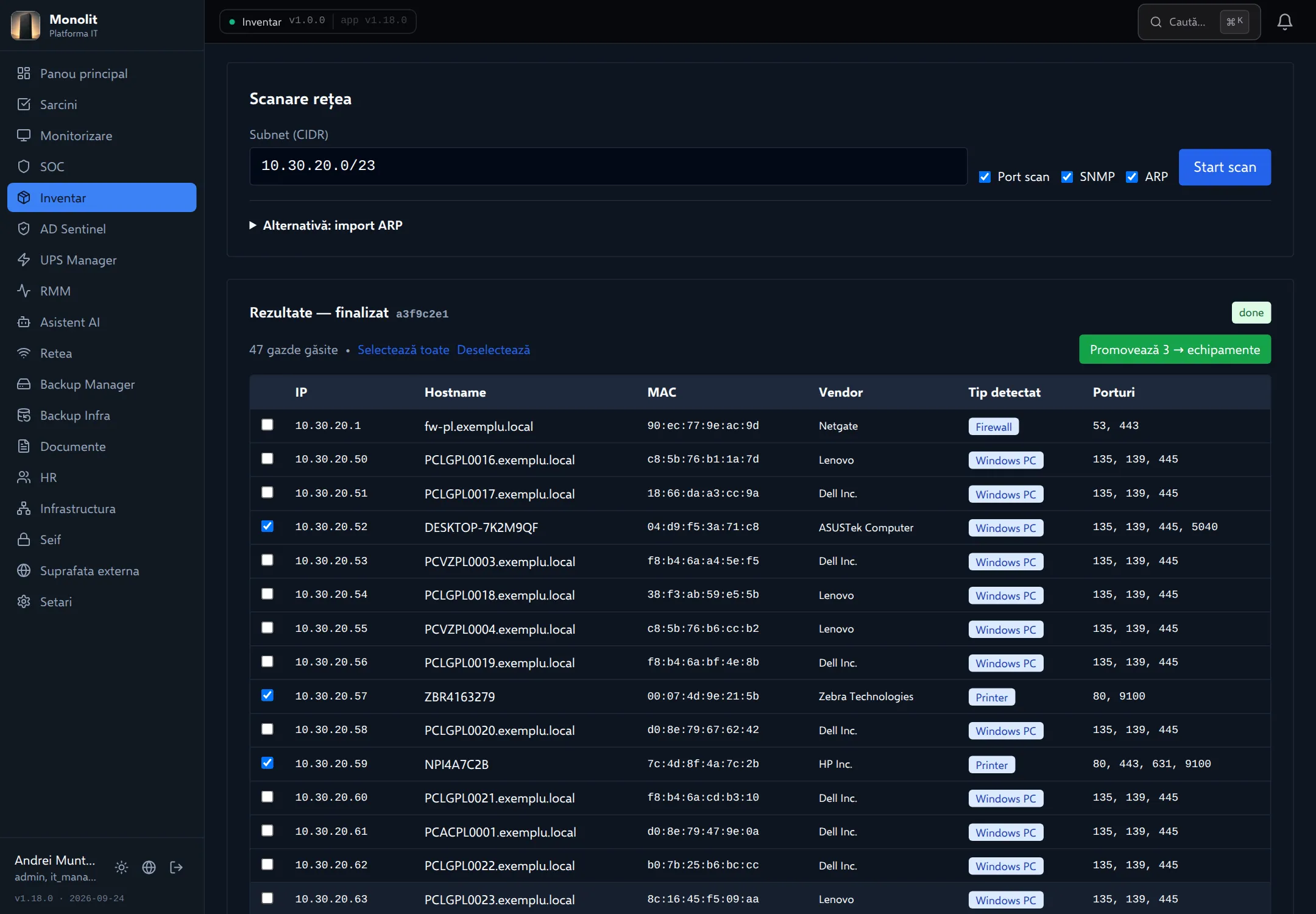
Network scan. The scan of the Ploiești office subnet found 47 hosts, three of which are not in inventory: a personal PC and two new printers. They are checked so they can be promoted directly to the asset list.
Screenshot 3 of 4

Network scan

The scan of the Ploiești office subnet found 47 hosts, three of which are not in inventory: a personal PC and two new printers. They are checked so they can be promoted directly to the asset list.

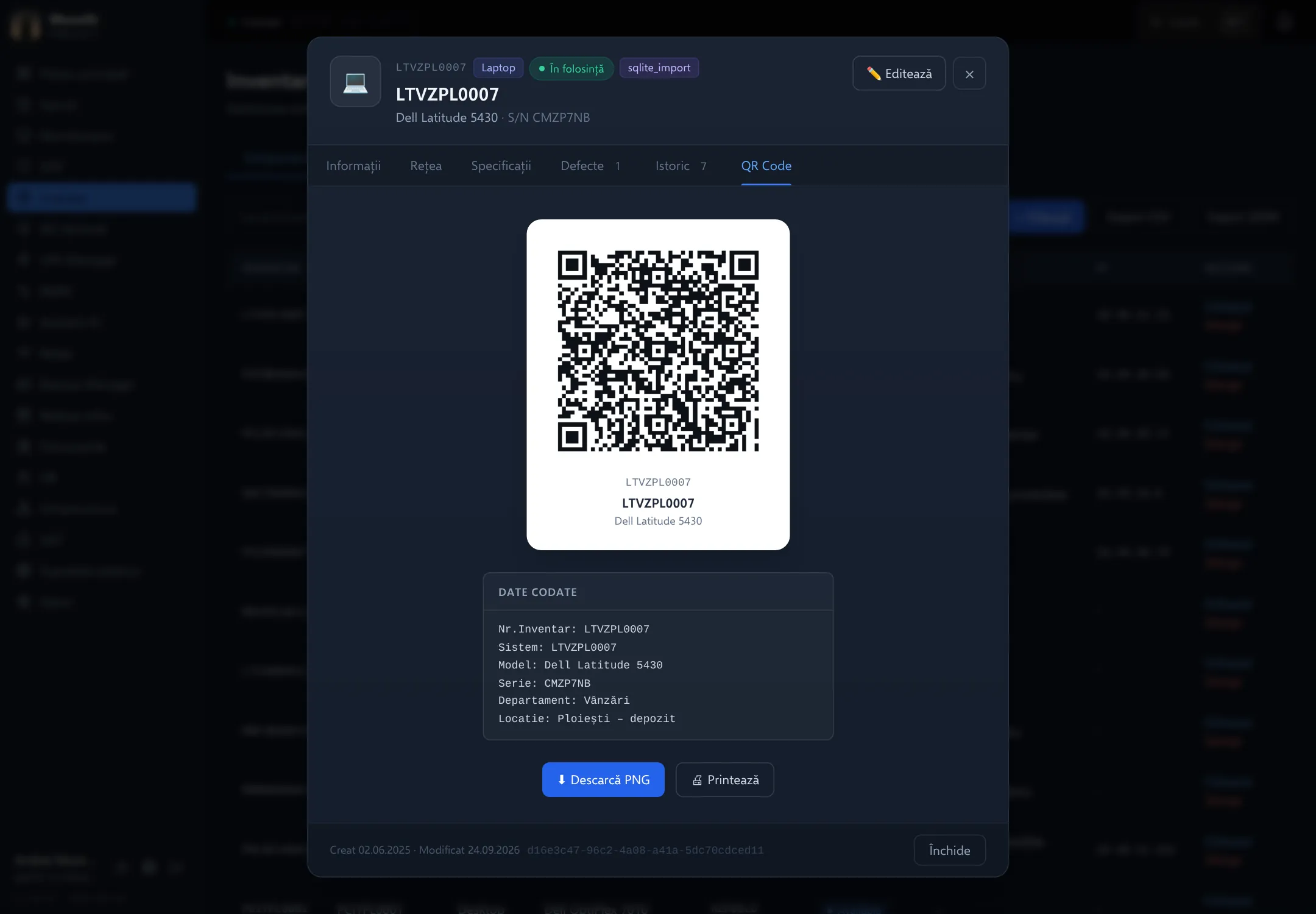
QR label. The QR code for LTVZPL0007 contains the asset tag, model, serial number, department, and location, without the user’s name. The label is downloaded or printed directly from the record.
Screenshot 4 of 4

QR label

The QR code for LTVZPL0007 contains the asset tag, model, serial number, department, and location, without the user’s name. The label is downloaded or printed directly from the record.

1Level 1

For leadership

What problem it solves, how the team works with the module, and what can be measured.

The inventory keeps all of the company’s IT equipment in one place: workstations, laptops, monitors, printers, servers, network equipment, UPS units. For each item it shows who uses it, where it is, when it was bought, how long its warranty lasts, and what has happened to it. It replaces the spreadsheets that fall behind after every move or new hire.

What it does in practice:

  • A single register. Each item has an asset tag (type, department, location, number), make, model, serial number, and a status: available, in use, in repair, retired/scrapped, or lost. The list can be searched by tag, name, serial number, IP, MAC, or user and filtered by type and status.
  • The asset record. Purchase details (date, warranty, supplier, invoice, price), user and location, network details (IP, MAC, VLAN, wall jack, switch port, rack), technical specifications, faults with their repair costs, the change history, and attached documents (invoices, handover reports, service reports).
  • QR labels. A label with the asset tag, model, serial number, department, and location is generated from the record. The user’s name is not included in the code.
  • Discovery of unregistered equipment. A scan of a subnet lists the hosts found, with their IP address, MAC address, and detected type. Anything that is not in the inventory can be selected and added in one click.
  • Sync with the UniFi controller. Switches and access points are added to the inventory and kept up to date automatically, at a set interval.
  • Connected to the rest of the platform. Equipment appears on the infrastructure map and in the racks in Monitoring; the rack position is written to the record automatically. Both the device registry in Network and SOC use Inventory to identify the asset behind a device seen on the network.
  • Access for the IT team only. The equipment list, with the people the items are assigned to, is visible only to the IT team. Deleting equipment and configuring the module remain with administrators and the IT manager. The HR module still handles its own handovers and returns.
  • Export to CSV and JSON for audits or accounting.

Typical workflows:

  1. New equipment. IT adds the item with the details from the invoice (or imports it from the UniFi sync or from a scan). The item receives an asset tag and is assigned to an employee, and the QR label is printed from the record. If it is mounted in a rack, its position appears in the record once it is placed in the rack drawing.
  2. Unknown device on the network. A scan of a subnet shows a host that is not in the inventory, for example a personal PC or a new printer. The technician identifies it, selects it, and promotes it to the equipment list, with its IP address, MAC address, and detected type.
  3. Fault and repair. The fault is recorded with its severity and cost, the item moves to “in repair”, and when it comes back it returns to “in use”. Each step stays in the history, and the total cost of repairs is shown in the record.
  4. Hiring and departure. The HR module takes available equipment from the inventory at hiring and releases it on departure, so that assignments stay correct without entering data twice. An item is released only if it still belongs to the departing employee; if it has been given to someone else in the meantime, the step stops and appears in HR for review.

Metrics it provides: the number of items in each status (in use, available in stock, in repair, lost), the equipment assigned to each employee, the cost of repairs per item, the warranty expiration date in each item’s record, and the number of devices found on the network without being registered.

2Level 2

For the IT team

Integrations, requirements, roles, control, and known limitations.

The record. Besides the standard fields, the record accepts custom fields defined by the administrator. Each item keeps its source: UniFi, scan, RMM, HR, or the initial import.

UniFi. Switches, access points, and gateways arrive automatically through the Network module, at each of its syncs, and are matched with the existing records. Direct sync between Inventory and the controller is started on demand. It works with classic controllers and with UniFi OS, and the result of each sync (added, updated, errors) stays in the history.

Scanning. Scans run in the background, with progress, cancellation, and history. As an alternative to scanning, you can import an ARP table copied from a computer or read the server’s own table.

Integrations.

  • The HR module takes equipment for handover and releases it when it is returned; before release, it checks who the item is assigned to.
  • The Monitoring module reads equipment for the infrastructure map, and its rack editor writes back to the record only the rack position and the room.
  • The device registry in Network takes the name, the asset tag, and the assigned person from Inventory. In the workstation panel in SOC, the assigned person is shown only to administrators and the IT manager, and every view is audited.

Roles and audit. Equipment (list, record, creation, editing) is accessible to the IT team and to the HR role, through which the HR module works. Documents, export, scans, UniFi sync, and the audit log are for the IT team only. Deleting equipment, custom fields, settings, and the UniFi configuration are for administrators and the IT manager; the UniFi controller password is no longer displayed after it is saved. For other accounts, the module does not appear in the menu and cannot be opened. Actions are written to the audit log, with user, action, entity, details, and result.

Requirements. The Monolit platform; the RMM module is optional. Scanning requires the server to reach the scanned subnets; reading the server’s ARP table only sees its own network segment. UniFi sync requires a local account on the controller.

Limitations.

  • The QR label is generated by an external public service: the browser needs Internet access, and the encoded data (without the user’s name) is sent to that service.
  • The warranty expiration date is shown only in the asset record; the list does not yet have a column, a filter, or alerts for warranties.
  • Bulk import replaces the entire inventory instead of adding to it.
  • The subnet field in the scanner starts with a fixed default value, which has to be replaced for every scan.
  • Status labels are mixed: English in the list and Romanian in the asset record.